Introduction
Losing valuable data from a laptop hard drive can be devastating, especially if you haven’t configured automatic backups. While regular backups are a crucial step in data protection, many users either forget or rely on manual backups that may not always be up to date. If you’re in a situation where your laptop has suddenly stopped working, don’t panic—there are effective ways to recover your important files.
Why Backup is Essential
Many people overlook the importance of regular data backups until disaster strikes. While external hard drives and cloud storage solutions offer reliable options, not everyone uses them consistently. Some challenges with manual backups include:
- Lack of Automation – Forgetting to back up regularly.
- Storage Limitations – Running out of space on an external drive.
- Software Complexity – Finding user-friendly backup software that isn’t resource-intensive.
Unfortunately, when a laptop fails, it can happen suddenly—one moment, it’s working fine, and the next, it’s unresponsive. Hardware issues such as motherboard failure, graphics card malfunctions, or screen connectivity problems can render the device unusable. However, even if your laptop won’t boot, the data on your hard drive may still be recoverable.
Steps to Recover Data from a Laptop Hard Drive
1. Remove the Hard Drive and Connect it to Another Computer
If your laptop is no longer functional but the hard drive is intact, you can attempt to recover your files by removing the drive and connecting it to another working computer.
- Step 1: Power off the laptop and carefully remove the hard drive (refer to your laptop’s manual if needed).
- Step 2: Use a USB-to-SATA adapter or a hard drive enclosure to connect the drive to another computer.
- Step 3: If the drive is recognized, you can access and copy your important files to an external drive.
2. Use Data Recovery Software
If your hard drive is detected but the data isn’t accessible, specialized data recovery software can help retrieve lost files. Some of the most effective options include:
- EaseUS Data Recovery Wizard – User-friendly interface with high recovery success rates.
- Recuva – A free option that works well for deleted files and formatted drives.
- Disk Drill – Supports deep scanning and file reconstruction.
Steps to use data recovery software:
- Download and install the software on a working computer.
- Connect your hard drive via an adapter or enclosure.
- Run a deep scan to search for lost or deleted files.
- Preview recoverable files and save them to a safe location.
3. Try Booting from a Live USB Drive
If you suspect that the issue is with your laptop’s operating system rather than the hard drive, you can attempt to access your files by booting from a Live USB with an operating system like Linux.
- Step 1: Create a bootable USB drive using Ubuntu or Hiren’s BootCD.
- Step 2: Insert the USB into your laptop and boot from it.
- Step 3: Access the file system and copy your important data to an external drive.
4. Seek Professional Data Recovery Services
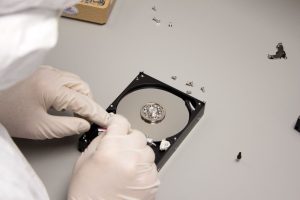
If the above methods don’t work, and the data is critical, it may be time to seek professional help. Data recovery specialists can extract data from damaged hard drives using specialized tools in cleanroom environments.
- Best for physically damaged hard drives or corrupted partitions.
- Cost varies depending on the complexity of the recovery process.
- Some professional services offer a no data, no charge policy.
Preventing Future Data Loss
While recovering lost data is possible, prevention is always the best strategy. Here are some steps to avoid losing important files in the future:
- Enable Automatic Backups – Use built-in backup solutions like Windows File History or macOS Time Machine.
- Use Cloud Storage – Services like Google Drive, Dropbox, and OneDrive provide automatic syncing.
- Invest in a Reliable External Hard Drive – Regularly back up your important files.
- Set Up RAID Storage – For advanced users, RAID configurations provide redundancy and protection against drive failures.
Conclusion
Losing data from a laptop hard drive can be stressful, but with the right approach, recovery is often possible. Whether using external connections, recovery software, or professional services, there are multiple ways to retrieve lost files. However, to avoid future data loss, always ensure that you have a reliable backup system in place.
By taking proactive steps today, you can safeguard your valuable files and prevent the frustration of unexpected data loss. If your laptop hard drive fails, don’t despair—follow the recovery steps outlined above, and you may be able to restore your important data successfully.